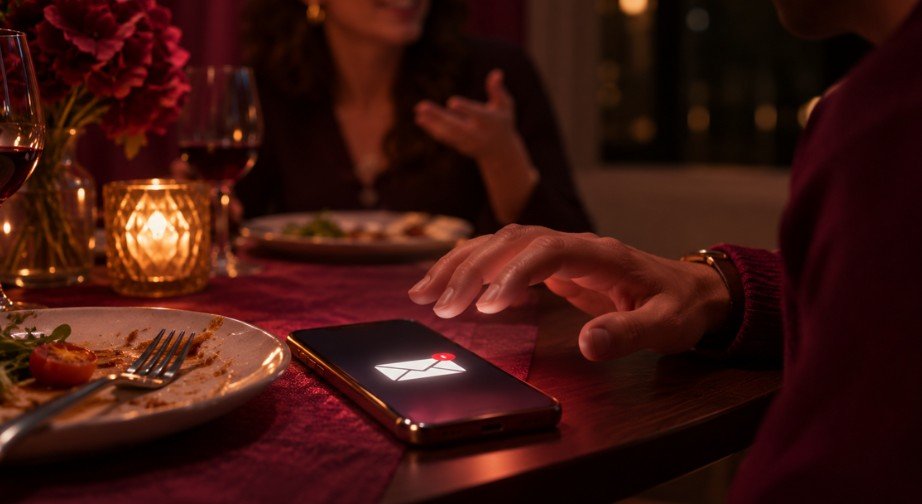
You already know that refreshing your inbox at 9:30 PM ruins your evening. Learning how to stop checking work emails after business hours requires building technical friction and clear team boundaries rather than relying on fragile self-control. Last quarter, I caught myself unlocking my phone 14 times after dinner just to glance at unread subject lines that I could not even act on until morning.
The most effective fix is immediate. Turn off push notifications and remove your work email app from your phone’s home screen tonight so checking becomes a deliberate choice instead of an unconscious reflex.
Why Willpower Fails Against Evening Inbox Urges
Every time a red notification badge pops up on your lock screen, your brain receives a small hit of anticipation. Psychologists call this “workplace telepressure”—the internal urge to respond quickly to work messages even when nobody asked you to. According to workplace stress research from the American Psychological Association, constant connectivity prevents psychological detachment, which leaves your nervous system stuck in low-grade fight-or-flight mode all night.
Willpower drains steadily from 8:00 AM onward. By the time you finish dinner, your decision fatigue is at its peak. Asking a tired brain to resist a glowing inbox icon on your home screen is a losing game every single evening.
My 30-Day Experiment: Willpower vs. Technical Friction
To see what actually breaks the habit, I tracked my after-hours email behavior across 30 days. For the first 15 days, I relied purely on self-discipline while keeping my work inbox on my phone. For the next 15 days, I introduced strict device barriers and team communication rules.
| Metric Tracked (6:30 PM – 7:30 AM) | Days 1–15 (Willpower Only) | Days 16–30 (Technical Friction) |
| Average Evening Inbox Checks | 9.4 checks per night | 0.3 checks per night |
| Unplanned Late-Night Replies Sent | 11 emails total | 0 emails total |
| Time Spent Ruminating Before Sleep | ~42 minutes | ~8 minutes |
| Wearable Deep Sleep Average | 54 minutes | 1 hour 21 minutes |
During the willpower phase, I still opened my inbox nearly ten times a night out of sheer muscle memory. Once I buried the app and automated quiet hours, my evening checks dropped to almost zero within 48 hours.
Step 1: Create Technical Friction on Your Devices
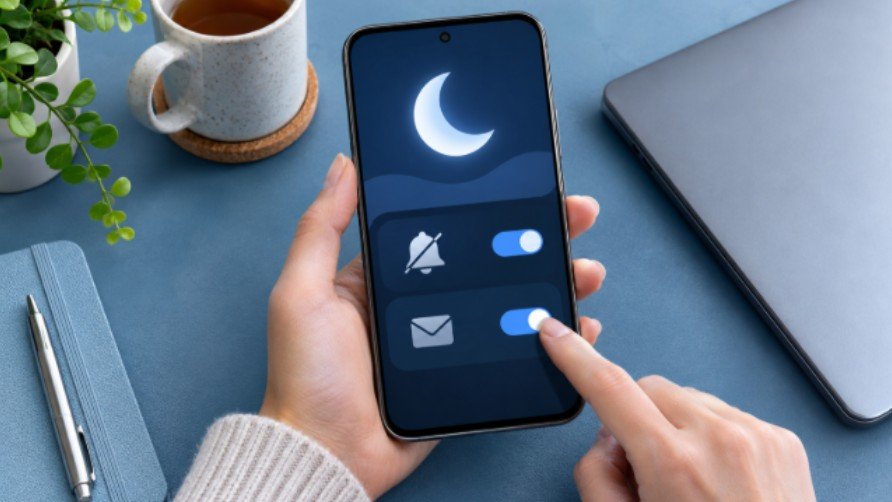
You cannot easily click what you cannot immediately see or hear. Adding just ten seconds of friction between your thumb and your inbox gives your rational brain enough time to intercept the impulse.
Configure iPhone Focus Modes and Android Digital Wellbeing
Start by silencing incoming alerts after your workday ends. On an iPhone, open Settings > Notifications > Mail to turn off lock-screen banners, or follow Apple Support’s guide to Focus modes to block work notifications automatically at 6:00 PM. If you use Android, open Digital Wellbeing & parental controls and set an app timer or Work Profile schedule that pauses your email client until the next morning.
Hide or Delete Work Email Apps From Your Personal Phone
Moving your work email app off your primary home screen breaks the thumb-tap reflex immediately. Tuck the icon inside a secondary folder on your last screen—or better yet, delete the app from your personal phone altogether. If your job does not require on-call field support, keeping work email strictly on your laptop draws a clean physical line between your office and your living room.
Pause Incoming Mail and Separate Work Accounts
Even when notifications are off, opening a unified inbox to check a personal receipt often exposes you to a stressful client thread. Keep your work email in a completely separate app or browser profile from your personal Gmail or Apple Mail. You can also install an inbox-pausing extension like Boomerang for Gmail, which holds incoming messages in a hidden queue until 8:00 AM so you never get rewarded with new mail at night.
For businesses handling frequent financial requests, teams can also automate invoice approval workflows to reduce manual email follow-ups and keep routine approvals moving without constant inbox monitoring.
Step 2: Set Clear After-Hours Email Boundaries With Your Team
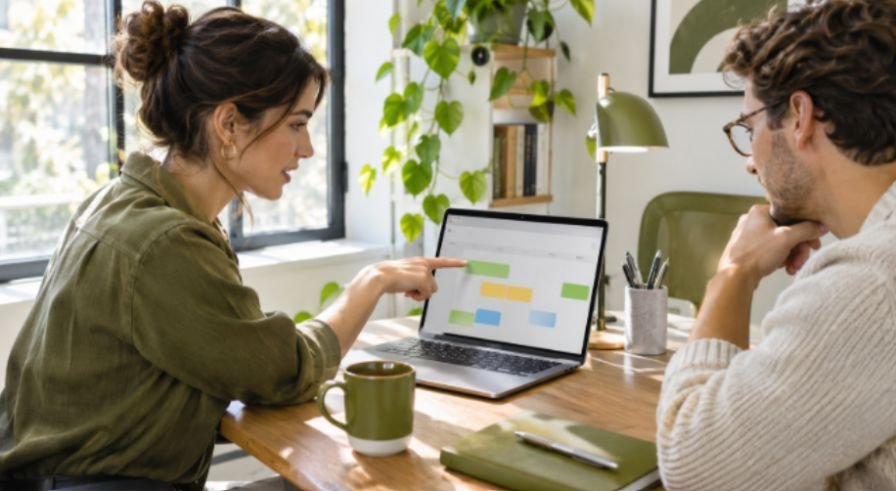
Technical blocks solve half the problem, while social expectations solve the other half. Studies highlighted by Harvard Business Review show that employees often overestimate how fast managers expect replies to non-urgent after-hours messages.
Publish Your Working Hours and Emergency Bypass Protocol
Remove the guesswork for colleagues and clients by stating your availability directly in your email signature and Slack status. A simple line like “My working hours are 8:30 AM to 5:30 PM EST; I respond to messages during those hours” sets polite, unambiguous expectations. To eliminate your own fear of missing a genuine crisis, tell your manager and key teammates to call or text your cell number if an urgent issue erupts. Knowing that true emergencies will reach you by phone frees you to ignore your inbox completely.
Use Gmail Schedule Send to Protect Your Boundaries
Sometimes an idea strikes at 8:00 PM, and jotting down a quick draft clears your head. If you write a message after hours, never hit send immediately. Use the Google Workspace Schedule Send feature (or Outlook’s Delay Delivery) to queue the email for 8:05 AM the next morning. Sending emails at night trains coworkers and clients to expect immediate nocturnal engagement from you.
Step 3: Build a 10-Minute Workday Shutdown Ritual

A hard stop at the end of the day signals to your brain that your responsibilities are safely paused until tomorrow. Pairing strong mindfulness habits for founders and remote professionals with a predictable closing routine prevents lingering work thoughts from hijacking your evening.
Close Your Open Loops Before Logging Off
Spend the final ten minutes of your shift reviewing tomorrow’s top three priorities and writing them on a physical sticky note. Once your tasks are captured on paper, close every browser tab, quit your email client, and shut down your work computer completely. If you spend your afternoon on video calls, pairing this shutdown with a short walk helps you reduce zoom fatigue during back-to-back meetings and transition out of high-alert mode.
Replace Reflexive Phone Checking With Analog Anchors
When you delete an evening habit, you leave a vacuum that your brain will try to fill. Pick one specific offline anchor—such as prepping dinner ingredients, reading a physical paperback, or stretching on the living room floor—for the first 30 minutes after logging off. Giving your hands and eyes an engaging physical task breaks the phantom urge to reach for your screen.
Frequently Asked Questions
1. How do I stop checking work emails at night without feeling anxious?
Give your team permission to call or text you for true emergencies so you know an unmonitored inbox will never cause a missed crisis.
2. Should I delete my work email app from my personal phone?
Yes, deleting work email from your personal phone is the fastest way to eliminate reflexive evening checks unless your role requires on-call availability.
3. What should I write in my email signature for working hours?
Add a brief note stating your core hours, such as “Working hours: 9:00 AM–5:30 PM EST — replies sent during business hours.”
4. Is checking work email after hours bad for your health?
Yes, constant after-hours email monitoring elevates evening cortisol levels, fragments deep sleep, and accelerates chronic workplace burnout.
Lock the Inbox, Reclaim Your Evenings
Your best work tomorrow depends on actually resting tonight. Pick just one technical barrier from this guide—whether that means turning on Focus mode, hiding your mail app in a buried folder, or adding working hours to your signature—and set it up before you close this tab. Once you break the nightly refresh loop, you will realize that almost nothing sitting in your inbox at 9:00 PM ever needed you before sunrise.